How to Manage Employee Leave in Skapp: A Complete Time-Off Management Guide

TL;DR
Skapp’s Time-Off module helps teams manage employee leave from start to finish in one place. Administrators can configure leave types, entitlements, and custom allocations, while employees can request leave, track balances, and monitor request status easily. Managers can review team availability, approve or decline requests, and analyze leave trends through built-in dashboards. With features like leave analytics and Google Calendar integration, Skapp makes it easy to manage employee time off without spreadsheets or manual tracking.
Managing employee leave can quickly become complicated when requests, approvals, and leave balances are handled across multiple tools or spreadsheets. Without a clear system in place, teams often struggle with tracking entitlements, avoiding scheduling conflicts, and maintaining visibility into who is available and when.
Skapp simplifies the entire leave management process by bringing everything into one platform. From configuring leave types and entitlements to requesting time off, approving leave, and analyzing team availability, Skapp helps organizations manage time off with clarity and consistency.
In this guide, we’ll walk through how to use Skapp’s Time-Off module, including how to:
Add leave entitlements and custom allocations
Create and manage leave types
Request and approve leave
Track pending requests and team availability
Analyze leave trends through the dashboard
Sync leave with Google Calendar
By the end of this walkthrough, you’ll understand how to set up and manage employee leave efficiently using Skapp.
Adding Leave Entitlements
Leave entitlements define how much leave employees are eligible to take during a specific period. In Skapp, administrators can assign these entitlements in bulk using a CSV template or create individual allocations when specific employees require custom leave balances.
Adding Leave Entitlements in Bulk
Bulk entitlements make it easy to assign leave balances across the organization during initial setup or at the beginning of a new leave cycle.
To add leave entitlements:
Navigate to the Leave section from the left sidebar → Select Leave Entitlements → Click Add entitlements.
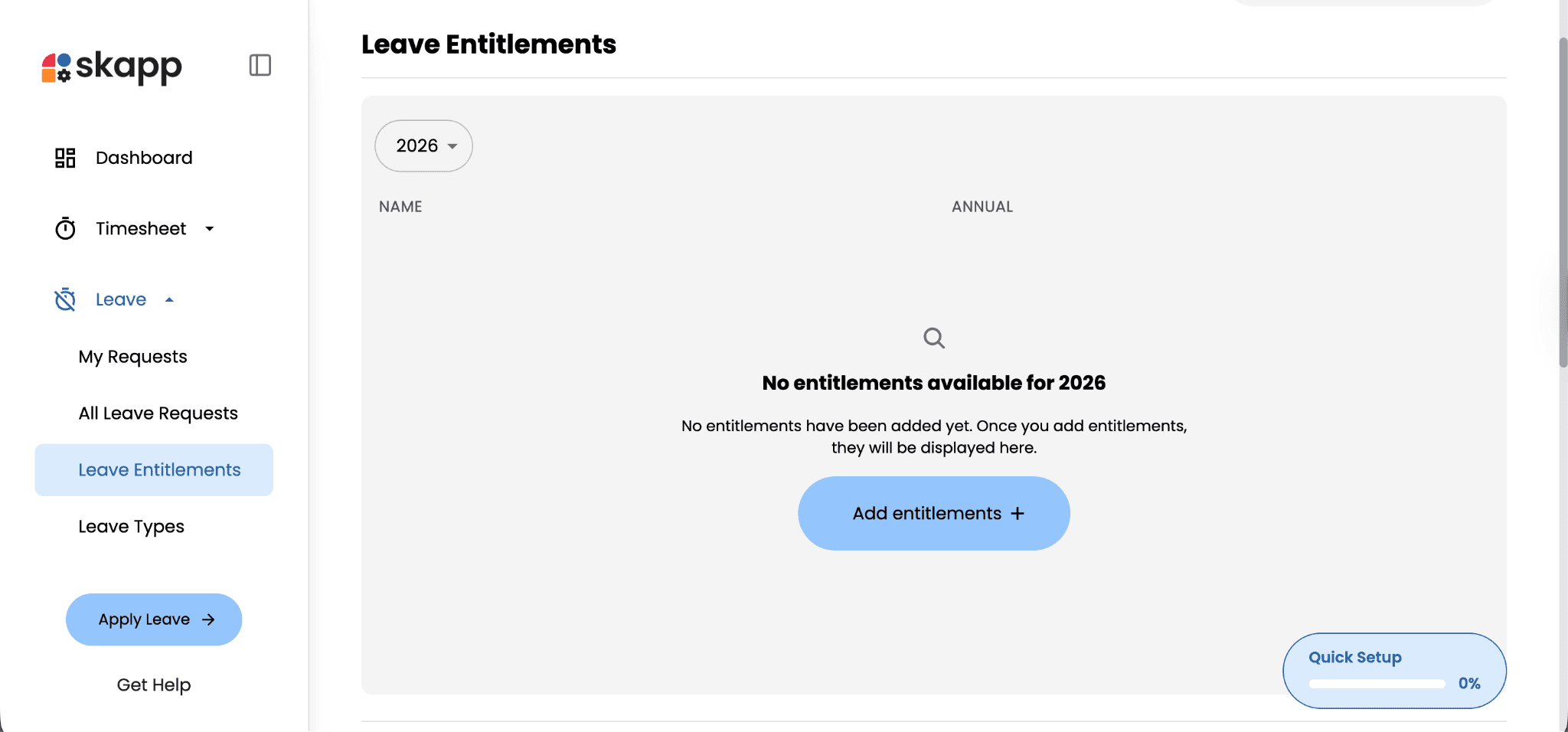
Skapp will prompt you to download a CSV template. This template allows you to define the leave balances you want to assign to employees.
After downloading the template:
Fill in the required employee leave entitlement details → Save the completed file → Upload the CSV file back into Skapp.
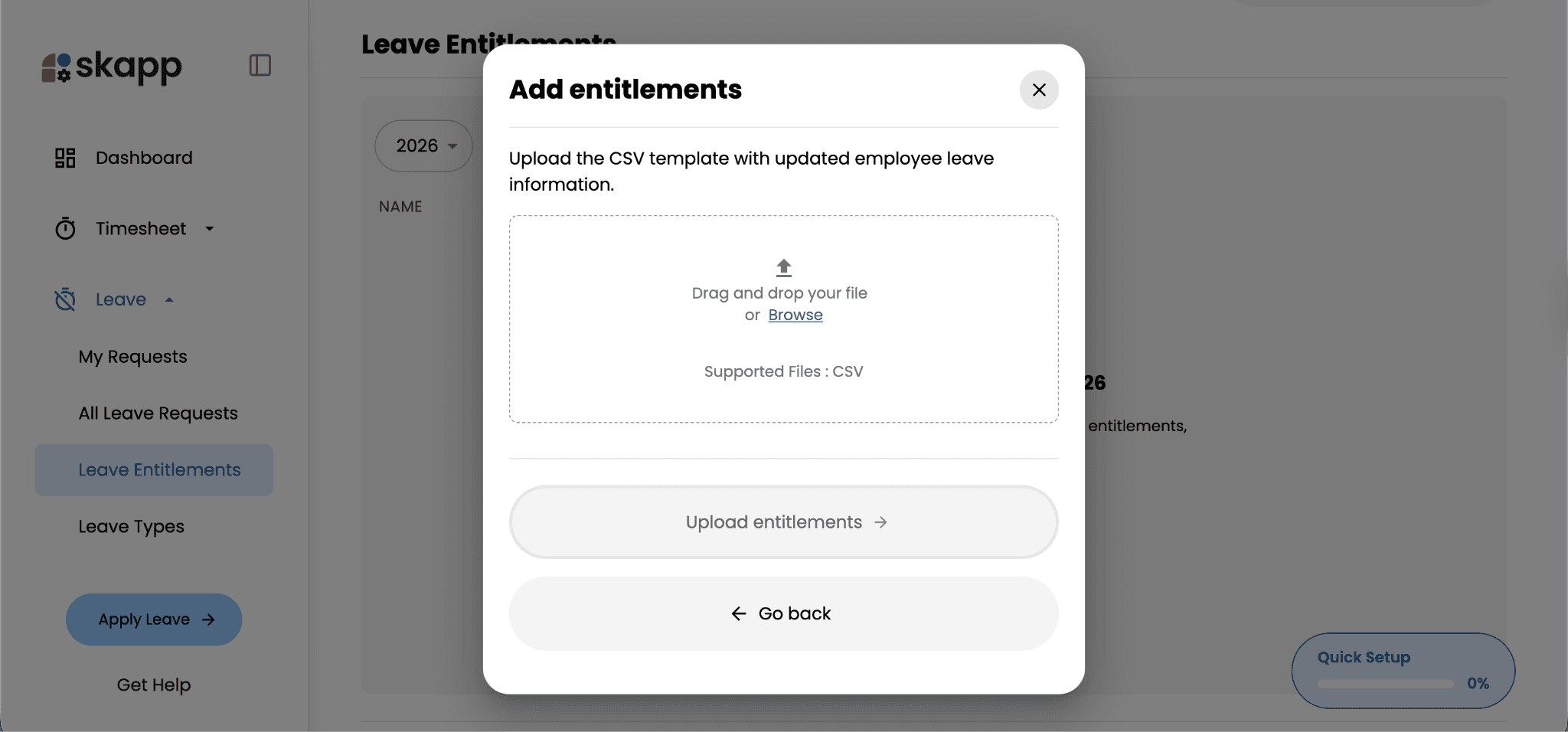
Once uploaded, the system automatically assigns the specified leave balances to the relevant employees. This allows administrators to configure leave entitlements quickly without manually updating each employee profile.
Pro tip: You can filter entitlements by year, making it easy to manage and review leave allocations across different leave cycles.
Creating Custom Leave Allocations
In some cases, certain employees may require custom leave allocations that differ from the standard entitlement structure. For example, this might apply to new hires, employees with special leave arrangements, or adjustments made during the year.
To create a custom leave allocation:
Navigate to Leave → Leave Entitlements → and select Add custom allocation.
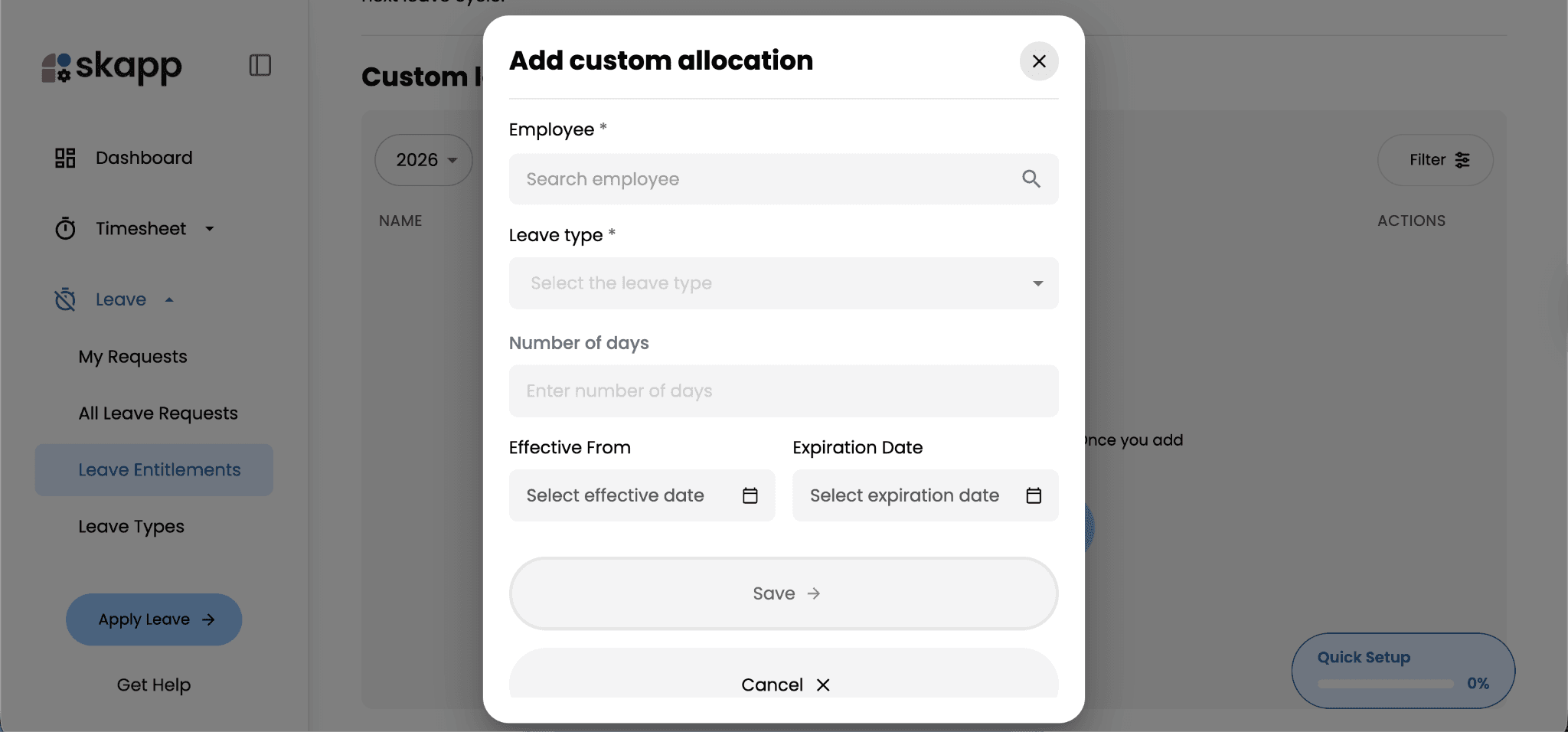
From here, you can:
Select the employee
Choose the leave type
Define the number of leave days
Set the effective date and expiration date
Once saved, the custom allocation will be added to the employee’s leave balance while keeping the overall entitlement structure intact.
Custom allocations provide flexibility for HR teams to handle special cases without needing to modify the standard leave policies applied across the organization.
Adding Leave Types
Leave types define the different categories of leave employees can request within your organization. These could include common types such as annual leave, sick leave, unpaid leave, or any custom leave category based on your internal policies.
To add a leave type in Skapp:
Navigate to the Leave section from the left sidebar → Select Leave Types → Click Add leave type
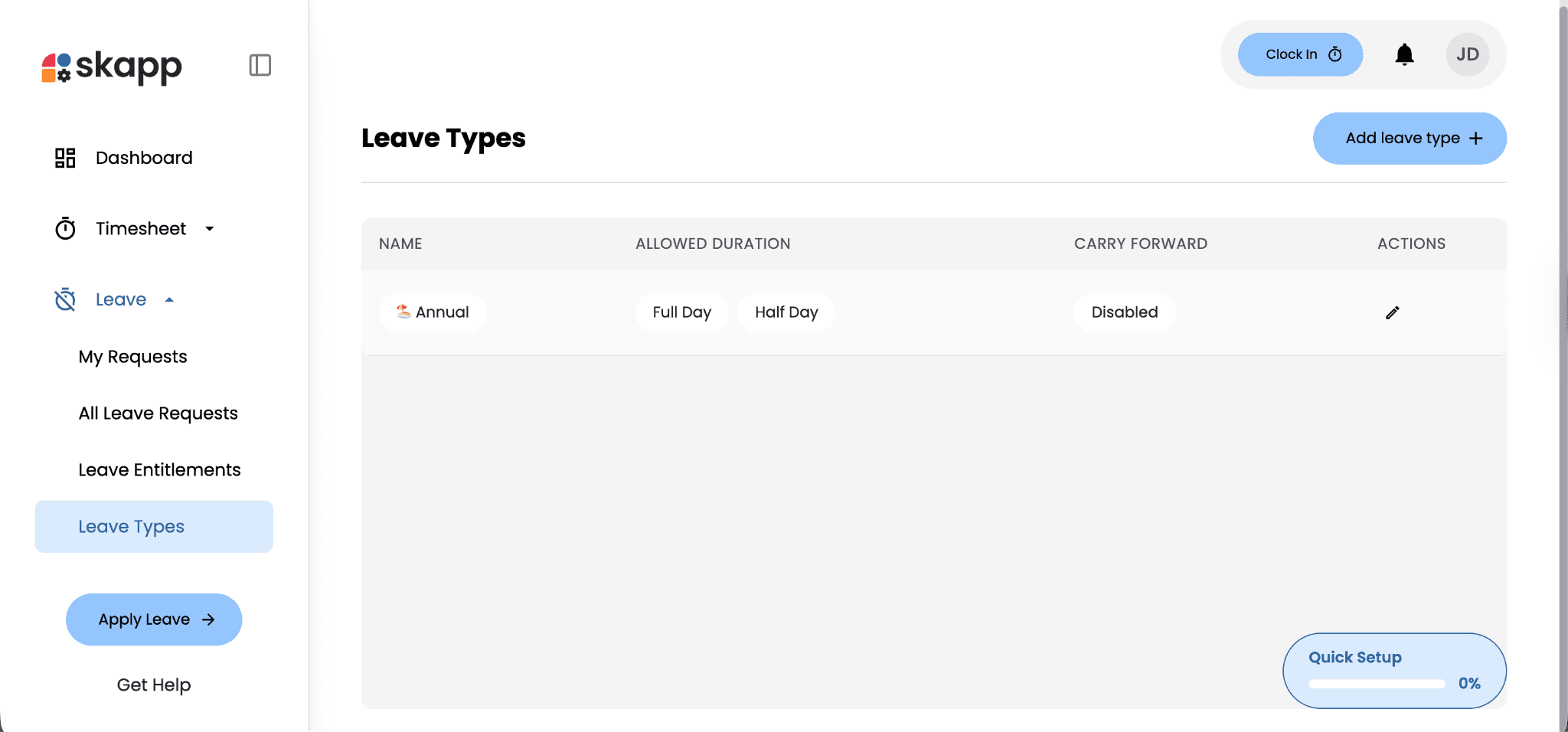
You will then be prompted to configure the details of the leave type.
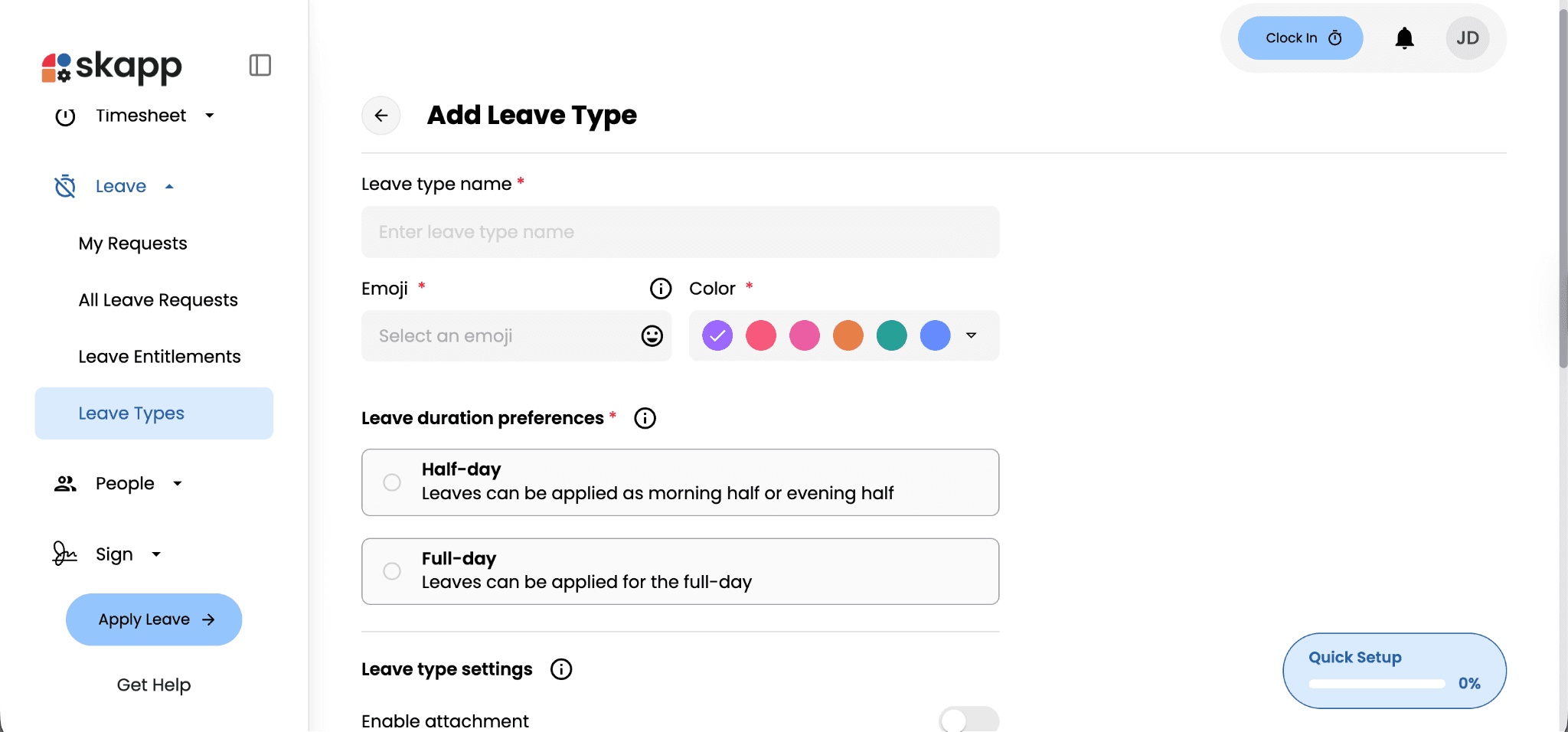
Start by entering the leave type name, selecting an emoji, and assigning a color. These help make different leave categories easy to identify across the system.
Next, configure the leave duration preferences. You can choose whether the leave can be applied as:
Full-day leave
Half-day leave
This flexibility allows organizations to support different leave policies depending on their operational needs.
Under Leave Type Settings, you can configure additional requirements such as:
Enabling attachments for leave requests
Requiring attachments for certain leave types
Requiring comments when submitting a leave request
These settings are useful for cases where supporting documentation may be necessary, such as medical leave.
You can also configure leave approval settings, including the option to allow automatic approval for specific leave types if your policy allows it.
Finally, Skapp allows you to manage leave carry-forward rules. If enabled, administrators can define:
The maximum number of leave days that can be carried forward
The expiration date for carried-forward leave
Once all settings are configured, click Save to create the leave type.
After adding leave types, they will become available for employees when submitting leave requests, ensuring requests align with your organization’s leave policies.
Requesting Time Off in Skapp
Employees can easily request leave directly from the Skapp interface. The process is designed to be simple while still giving managers the information they need to review and approve requests.
To request time off: Simply click the Apply Leave button on the left sidebar
This will open the leave request panel, where you can begin creating your request.
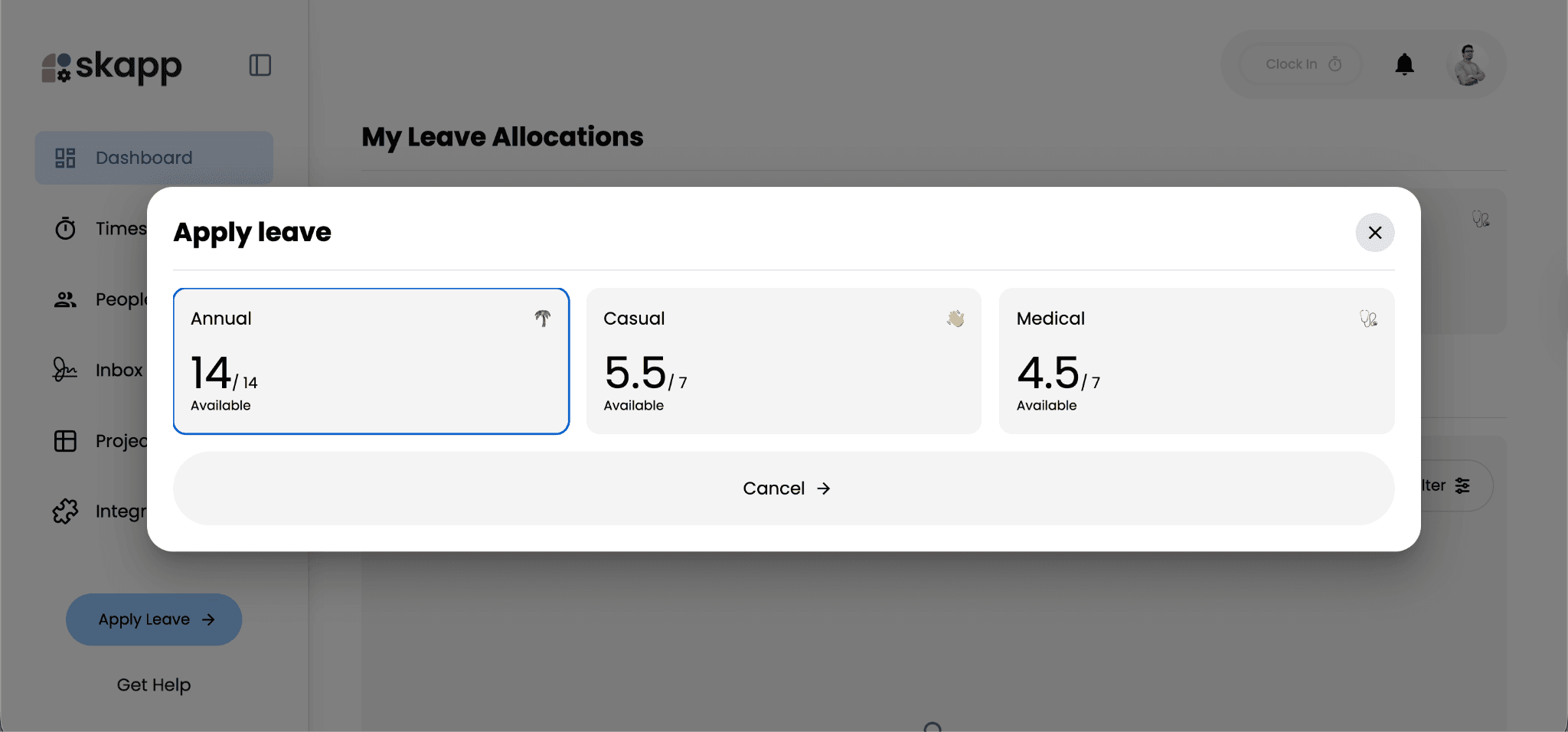
First, choose the type of leave you want to apply for. Skapp displays your available leave balance for each leave type, helping you quickly understand how much leave you still have remaining before submitting a request.
After selecting the leave type, you can:
Choose the start and end dates using the calendar
Select whether the leave is a full day or half day
Add a comment explaining the reason for the request
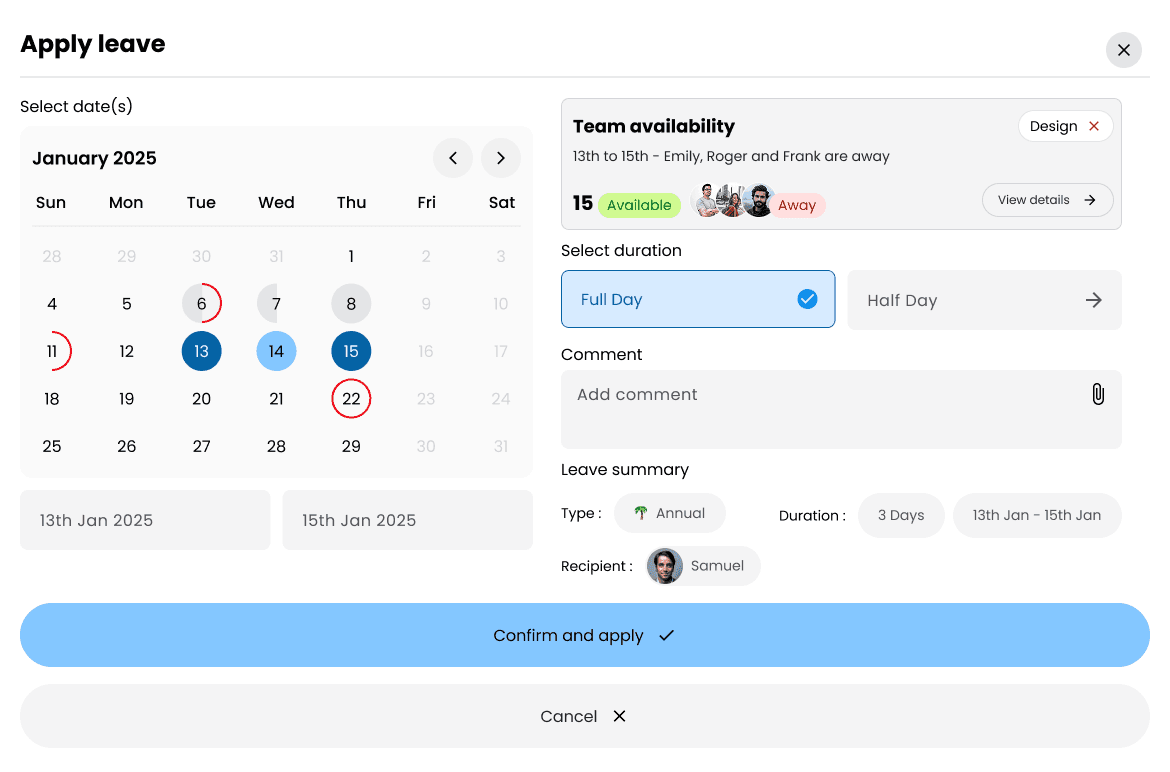
As you fill in the details, Skapp automatically generates a leave summary showing:
The leave type
Duration of the leave
The manager or supervisor who will receive the request
You can also view your remaining entitlement for the selected leave type to ensure the request falls within your available balance.
Once everything is confirmed, click Confirm and apply to submit the leave request.
The request will then be sent to your designated supervisor for approval and will appear under My Leave Requests, where you can track its status.
Managing Pending Leave Requests
Once a leave request is submitted, it will appear under the My Leave Requests section. This view allows employees to track the status of their requests and take action if needed.
To manage a pending leave request:
Navigate to the “My Requests” section and select the leave request you want to review.
Opening a request provides a detailed view showing information such as the leave status, duration, date applied, recipient (supervisor), and the reason provided.
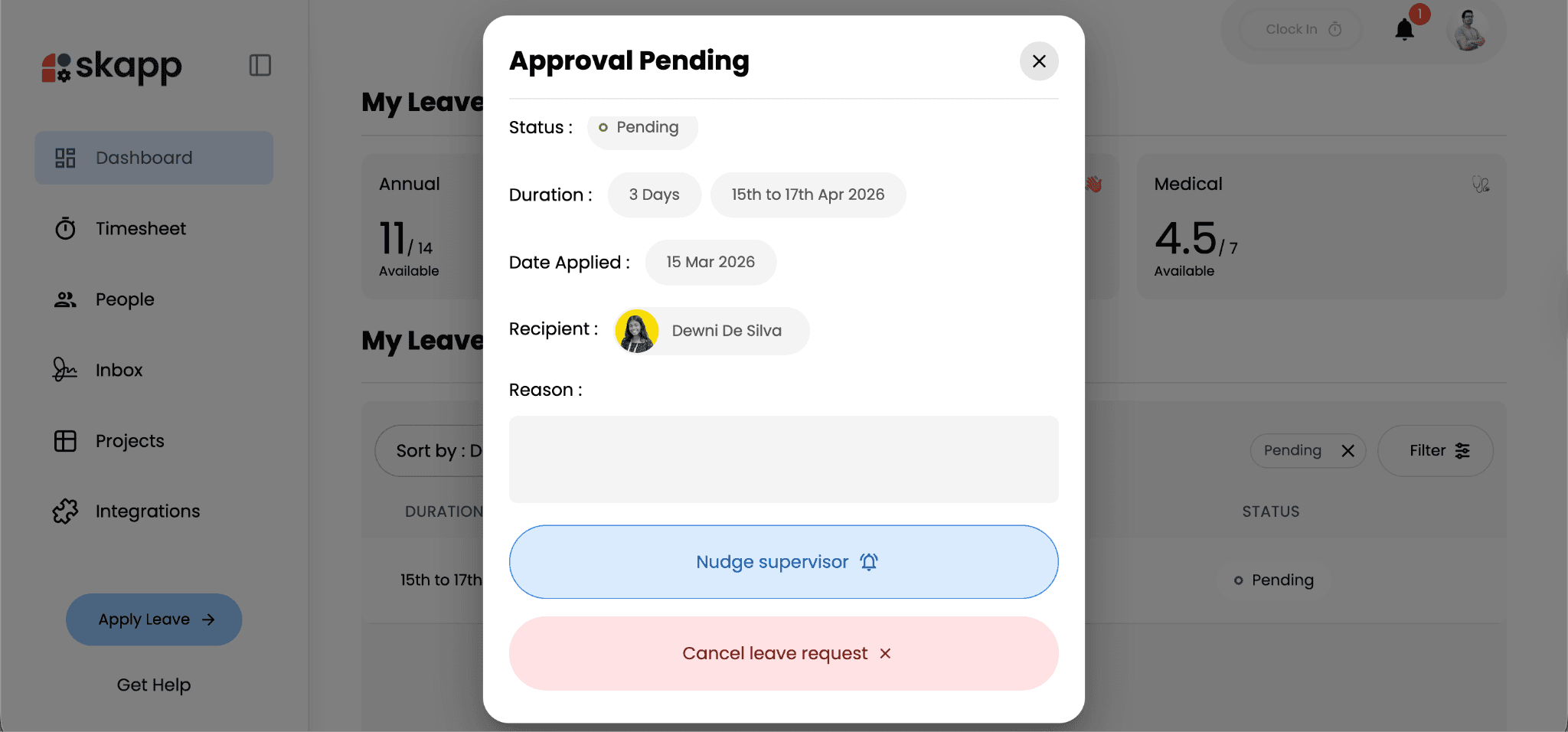
If the request is still pending approval, Skapp provides two helpful options:
Nudging Your Supervisor
If your request has been pending for some time, you can send a reminder directly to the approver.
Simply click Nudge supervisor, and Skapp will notify the relevant manager to review the request by sending both an email and an in-app notification. This allows employees to follow up on approvals without needing to send separate messages or emails.
Cancelling a Leave Request
If your plans change, you can also cancel the leave request directly from this view.
Click Cancel leave request, and the request will be withdrawn from the approval process. Any leave balance that was reserved for the request will automatically be restored to your available leave entitlement.
This flexibility allows employees to manage their leave requests easily while ensuring leave balances remain accurate.
Approving or Declining Leave Requests
Managers and supervisors can review and manage employee leave requests directly within Skapp. The system provides a clear overview of pending requests, making it easier to review leave details before making a decision.
To review leave requests:
Navigate to the Leave section in the sidebar → Select All Leave Requests
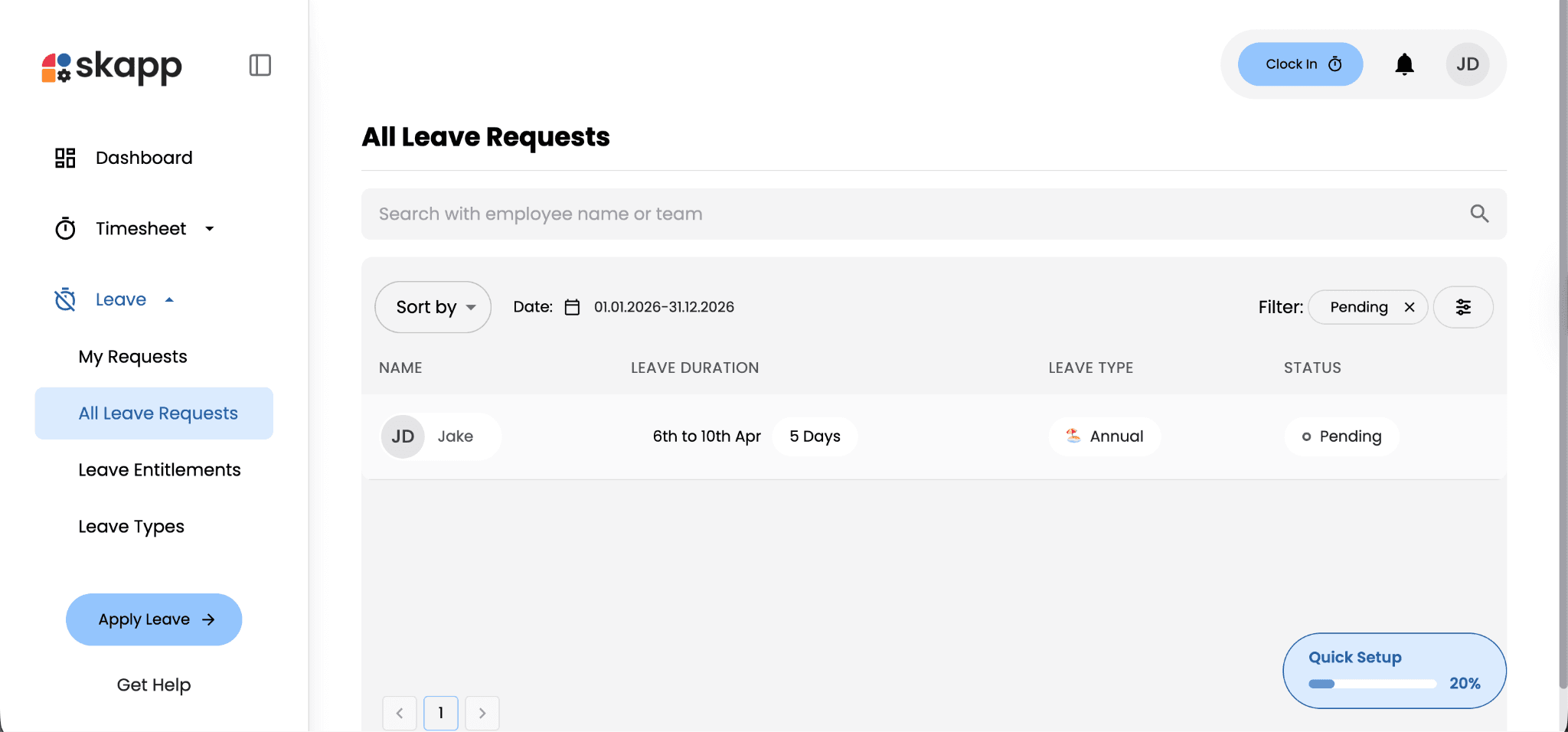
This view displays all leave requests sent in by employees under your supervision, along with key information such as employee name, leave duration, leave type, and approval status. Managers can also use filters to quickly find pending requests that require action.
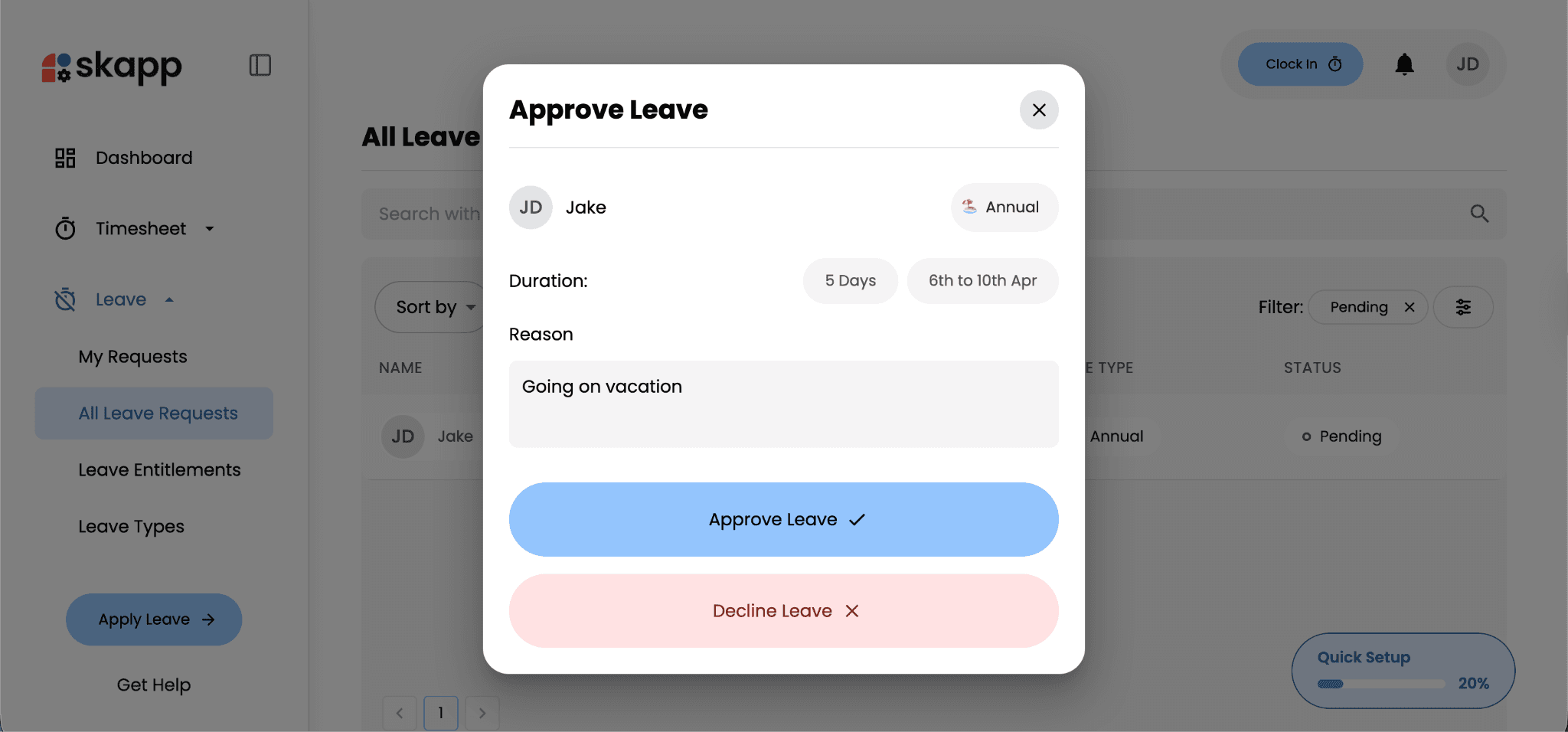
Selecting a leave request opens a detailed view showing:
Leave status
Leave duration and date
The date the request was submitted
The employee who requested the leave
The reason or comment provided with the request
From this panel, managers can take the appropriate action depending on the situation.
Approving Leave Requests
If the request aligns with team availability and company policies, managers can approve the leave request directly from the request view. Once approved, the leave is recorded in the system and reflected in the employee’s leave history.
Declining Leave Requests
If the leave cannot be accommodated, managers can decline the request. In such cases, it is recommended to include a comment explaining the reason for the decision to maintain transparency with the employee.
Revoking Leave When Necessary
In situations where previously approved leave needs to be reversed, managers can revoke the leave request. When this happens, the system automatically restores the employee’s leave balance.
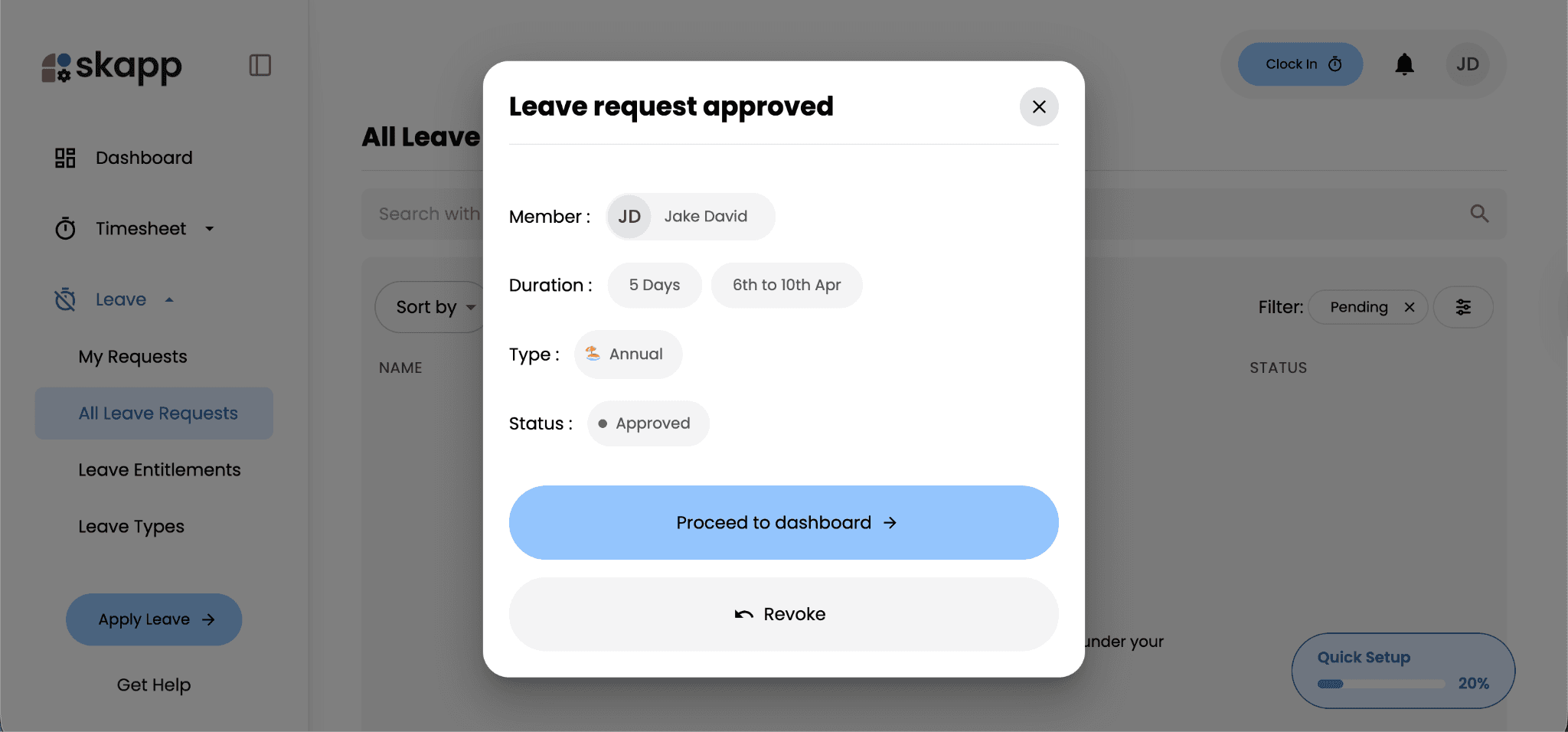
By centralizing approvals and leave tracking, Skapp ensures managers can handle leave requests efficiently while maintaining clear communication with their teams.
Reviewing Team Availability
Before approving a leave request, managers may want to check team availability to ensure that multiple team members are not away at the same time. Skapp makes this easy by providing a centralized leave calendar that shows who is scheduled to be off and when.
To check team availability:
Navigate to the Dashboard from the left sidebar → Select the Leave tab within the dashboard.
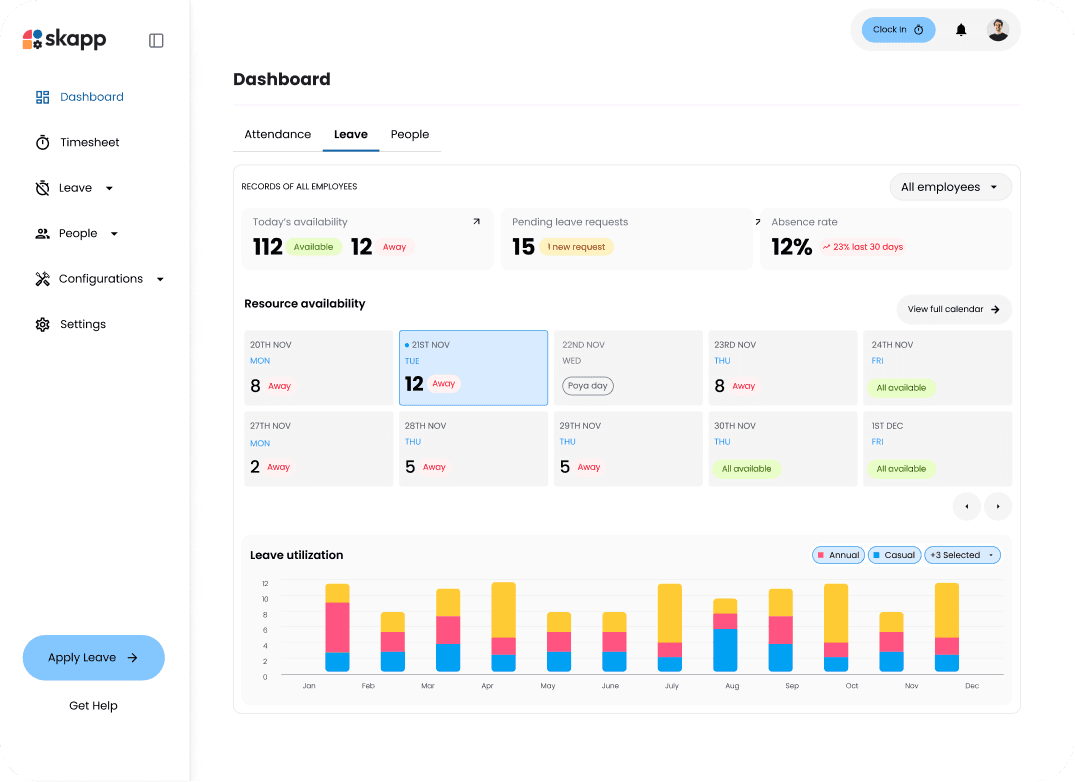
The leave calendar provides a clear overview of upcoming leave across the team. Managers can quickly see which employees have scheduled time off on specific dates, helping them avoid scheduling conflicts or understaffed periods.
With this centralized view, managers can:
See which team members are currently on leave
Identify upcoming absences across the team
Avoid approving overlapping leave requests that could impact operations
Plan workloads more effectively during periods of reduced availability
Having visibility into team availability ensures that leave approvals are made with the full context of team schedules. This helps maintain productivity while still allowing employees to take time off when needed.
Leave Analytics
Skapp also provides built-in analytics to help managers and HR teams better understand how leave is used across the organization. These insights make it easier to identify patterns, monitor absenteeism, and plan team capacity more effectively.
To access leave analytics:
Navigate to the Dashboard from the left panel → Select the Leave tab
The dashboard provides a comprehensive overview of leave activity across the organization.
Key Leave Insights
The analytics view highlights several important metrics, including:
Today's Availability- Quickly see how many employees are currently available or away, giving you an instant snapshot of team capacity for the day.
Pending Leave Requests- This metric shows the number of leave requests waiting for approval, helping managers stay on top of requests that require attention.
Absence Rate- Skapp tracks the overall absence rate and compares it with previous periods, helping organizations monitor trends and identify potential patterns in absenteeism.
Resource Availability Calendar
The dashboard also includes a resource availability view, which provides a quick look at upcoming days and how many employees are scheduled to be away. This allows managers to anticipate periods where team capacity might be lower and plan workloads accordingly.
Leave Utilization Trends
The leave utilization chart shows how different types of leave are used over time. Managers can visualize monthly trends for leave categories such as annual leave, casual leave, medical leave, etc.
These insights help organizations understand how employees take time off throughout the year and make informed decisions about leave policies and workforce planning.
By centralizing leave data and analytics, Skapp gives teams the visibility they need to manage time off proactively rather than reactively.
Syncing Leave with Google Calendar
Skapp also allows you to integrate with Google Calendar, making it easier to keep track of upcoming leave alongside your meetings and daily schedule.
To connect Google Calendar:
Navigate to Integrations from the left sidebar → Locate Google Calendar in the integrations list → Click Connect.
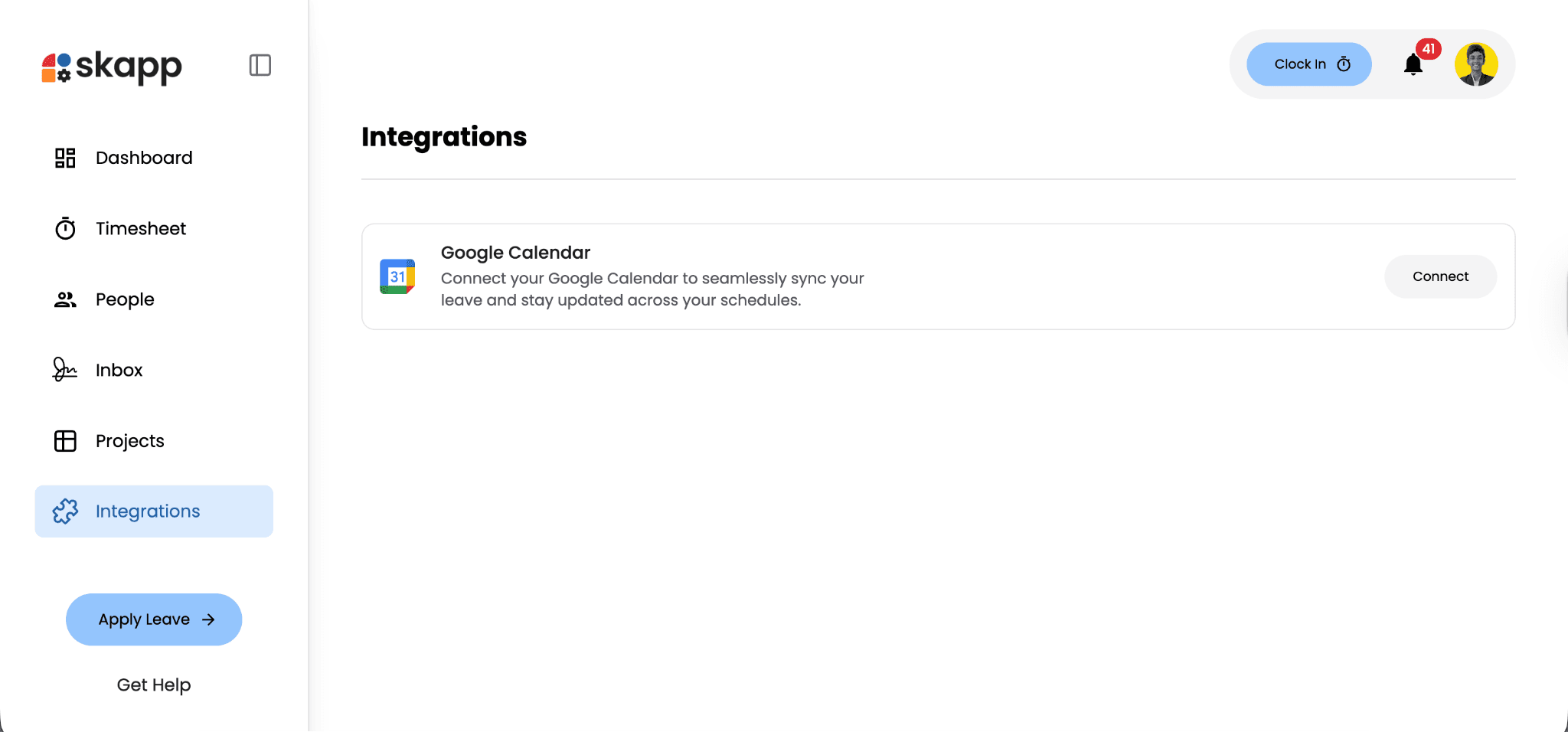
Once connected, approved leave will automatically sync with your Google Calendar. This ensures that your calendar reflects your time off, helping teams avoid scheduling meetings or commitments during leave periods.
The integration helps maintain visibility across tools while keeping everyone aligned on availability.
Managing Time Off Without the Usual Friction
Handling employee leave shouldn’t involve scattered spreadsheets, endless email threads, or constant HR follow-ups. With Skapp, the entire leave management process- from setting entitlements to requesting leave, approvals, and analytics- happens in one place.
Employees can easily view their leave balances, request time off, and track approvals, while managers gain the visibility they need to plan team availability and avoid scheduling conflicts. Administrators can configure leave policies, manage entitlements, and analyze leave trends without the operational overhead that typically comes with leave management.
By centralizing these workflows, Skapp helps teams spend less time managing processes and more time focusing on meaningful work.
What is employee leave management software?
Employee leave management software helps organizations track employee time off, manage leave requests, maintain leave balances, and streamline approvals. Tools like Skapp centralize these processes, eliminating the need for spreadsheets or manual tracking.
How do companies track employee leave?
Companies typically track employee leave using HR or time-off management systems that record leave requests, entitlements, approvals, and remaining balances. Platforms like Skapp allow teams to manage leave in one place while giving managers visibility into team availability.
What is the best way to manage employee time off?
The most effective way to manage employee time off is by using a centralized system where employees can request leave, managers can approve requests, and administrators can monitor leave balances and analytics. This helps prevent scheduling conflicts and improves transparency across teams.
Can employee leave be integrated with calendars?
Yes. Many leave management systems allow calendar integrations so approved leave appears automatically in employees’ calendars. In Skapp, Google Calendar integration ensures that time off is reflected in schedules, helping teams avoid meeting conflicts.